シェアする
シェアする
HTML Beginner Summary - Japanese Only
みなさまこんにちわ。
HTML入門編の最後の記事でございます。これまで大変お疲れ様でした、そしてここまでお付き合い頂きありがとうございました。総まとめとなりますのでこちらで忘れてしまった項目などをチェックしちゃってください。
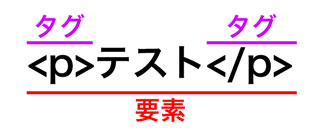
タグと要素
コメントアウト
『<!--』と『-->』で囲まれた部分が『コメント』となる。記述例は以下。
<!DOCTYPE html>
<html lang="ja">
<head>
<meta charset="utf-8">
<title></title>
</head>
<body>

<!-- メインコンテンツ ここから -->

<!-- メインコンテンツ ここまで -->

<!-- 追加分 ここから -->

<!-- 追加分 ここまで -->

</body>
</html>
詳細はこちらへ
titleタグ
pタグとbrタグ
pタグで文章の段落を表示できる。改行させたい場合はbrタグを使用する。記述例は以下。
<p>ボクの初めてのウェブサイトを製作中です。<br>でもお腹空きましたのでご飯食べてきます。</p>
詳細はこちらへ
imgタグ
imgタグで画像を表示させることができる。一般的にウェブで使われる画像の形式(フォーマット)は『JPEG』(ジェイペグ)、『PING』(ピング)、『GIF』(ギフ もしくは ジフ)の三種類。記述例は以下。
<img alt="サンプル画像です" src="sample.jpg">
詳細はこちらへ
パス
パスとはファイルの位置を指定するための記述。絶対パスで位置を指定する『URL』、同じ階層を示す『./』、一つ上の階層を示す『../』、ドキュメントルートからの位置を指定する『/』、同じプロトコルを維持したまま位置指定ができる『//』が使用される。記述例は以下。
<img alt="" src="https://wp-p.info/reps/html-beginner/img/test.jpg">
<img alt="" src="./test.jpg">
<img alt="" src="/test.jpg">
<img alt="" src="//wp-p.info/reps/html-beginner/img/test.jpg">
詳細はこちらへ
aタグ
aタグを使用するとハイパーリンクを設定できる。『target属性』でページの表示方法を指定できる。記述例は以下。
<a href="http://google.co.jp/" target="_blank">ここをクリック</a>
詳細はこちらへ
h1〜h6タグ
h1〜h6タグを使用すると見出しとなる。記述例は以下。
<h1>見出し1</h1>
<h2>見出し2</h2>
<h3>見出し3</h3>
<h4>見出し4</h4>
<h5>見出し5</h5>
<h6>見出し6</h6>
詳細はこちらへ
表
『table要素』、『tr要素』、『th要素』、『td要素』で表を作成できる。『colspan』属性と『rowspan』属性でセルを結合できる。『colspan』属性は横方向、『rowspan』属性は縦方向の結合となる。記述例は以下。
<table>
    <tr>
        <td colspan="3" rowspan="3">colspanとrowspanに3を設定しているよ!</td><td>セル2</td><td>セル3</td>
    </tr>
    <tr>
        <td>セル2</td><td>セル3</td>
    </tr>
    <tr>
        <td>セル2</td><td>セル3</td>
    </tr>
</table>
詳細はこちらへ
リストと定義リスト
『ul』タグ、『ol』タグ、『li』タグでリストを作成できる。記述例は以下。
<ul>
    <li>
        <p>リスト1</p>
        <p><span>ここはspanです</span></p>
    </li>
    <li>リスト2</li>
    <li>リスト3</li>
</ul>
定義リストは『dl』タグ、『dt』タグ、『dd』タグで作成できる。記述例は以下。
<dl>
    <dt>定義</dt>
    <dd>ここに説明を書くよ</dd>
</dl>
詳細はこちらへ
インデント
『インデント』とは文章の行頭に空白を挿入して段をさげる字下げのこと。読み手が読みやすいよう整形するのが目的。インデントする際は半角スペースの挿入に注意。記述例は以下。
<ul>
    <li>猫</li>
    <li>犬</li>
    <li>馬</li>
</ul>
詳細はこちらへ
divタグとspanタグ
『div』タグと『span』タグは意味のないタグ。主に要素をまとめたい場合に使用される。記述例は以下。
<div>
    <p>ここはpタグです</p>
    <p>ここもpタグです。<span>ここはpタグの中のspanタグです</span></p>
</div>
<div>ここはdivタグです。</div>
詳細はこちらへ
以上となります。
さて次に勉強する内容ですが、当サイトで引き続き勉強したいという粋な方はCSS入門編へと進むと良いと思います。
CSSを身に付ければおしゃれなウェブサイトが色々と作成できるようになり、作成できるコンテンツの幅が大きく広がります。HTMLが書けるようになってきたらそのままCSSも身につけてしまいましょう。
ではこの辺で失礼致します。またどこかでお会いしましょう。
This article was written by Sakurama.

Author's beloved small mammal |
桜舞 春人 Sakurama HarutoA Tokyo-based programmer who has been creating various content since the ISDN era, with a bit of concern about his hair. A true long sleeper who generally feels unwell without at least 10 hours of sleep. His dream is to live a life where he can sleep as much as he wants. Loves games, sports, and music. Please share some hair with him. |
If you find any errors or copyright issues, please contact us.