padding
Specifies the padding (inner spacing) of all four sides of an element at once.
By specifying multiple values, you can set different padding values for each side. Values are separated by spaces.
- 1 value: the same value is applied to all four sides.
- 2 values: the first applies to top and bottom, the second to left and right.
- 3 values: the first applies to top, the second to left and right, the third to bottom.
- 4 values: applied in order to top, right, bottom, and left (clockwise from top).
Sample Code
p.test { padding: 10px;}
p.test1 { padding: 10px 15px;}
p.test2 { padding: 10px 15px 20px;}
p.test3 { padding: 10px 15px 20px 25px;}
Available Values
| Value | Description |
|---|---|
| number | A numeric value. Commonly used units are 'px' and '%'. Negative values are not allowed. When specified as '%', the reference size is the width of the containing block. The initial value is '0'. |
Browser Display Result
<div style="padding: 50px; border: solid 1px #f00;">
	<div style="background-color: #ff0;">This is a div element inside a div element. The parent div element has 'padding: 50px' specified.</div>
</div>
<div style="padding: 50px 25px; border: solid 1px #f00;">
	<div style="background-color: #ff0;">This is a div element inside a div element. The parent div element has 'padding: 50px 25px' specified.</div>
</div>
<div style="padding: 50px 25px 15px; border: solid 1px #f00;">
	<div style="background-color: #ff0;">This is a div element inside a div element. The parent div element has 'padding: 50px 25px 15px' specified.</div>
</div>
<div style="padding: 50px 25px 15px 10px; border: solid 1px #f00;">
	<div style="background-color: #ff0;">This is a div element inside a div element. The parent div element has 'padding: 50px 25px 15px 10px' specified.</div>
</div>
Browser Compatibility
 Chrome1+ ○
 Firefox1+ ○
 Safari1+ ○
 Edge12+ ○
 IE11 ○10 ○9 ○
 8 ○7 ○
 6 ○
6 ○ Opera3.5+ ○
 2 and earlier ×
 iOS Safari1+ ○
 Android Browser4.4+ ○3 and earlier × Chrome AndroidLatest ○ Firefox AndroidLatest ○
※ Version data is based on MDN.
Details
Specifies the padding (inner spacing) of all four sides of an element at once.
Padding is the space inside the border. See the box model diagram below.
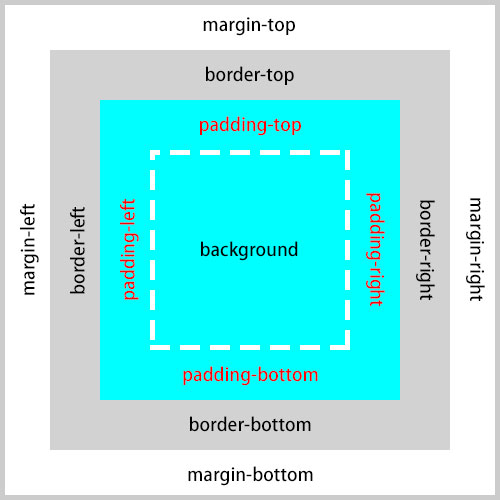
When a value is specified as '%', it is a relative value based on the width of the containing block. Note that vertical padding (top and bottom) is also based on the width — not the height — of the containing block.
<div style="width: 500px; margin: 0 auto; border: solid 1px #f00;">
	<div style="padding: 10%; background-color: #ff0;">This is a div element inside a div element. The parent div (red border) has 'width: 500px', and this element (yellow background) has 'padding: 10%'. So the padding on all four sides is '50px'.</div>
</div>
The padding specified with the 'padding' property is added to the element's own size, unless the 'box-sizing' property is set to 'border-box'.
<div style="padding: 20px; width: 300px; height: 300px; background-color: #ff0;">This is a div element. 'padding: 20px', 'width: 300px', and 'height: 300px' are specified. Since the padding is added to the element's size, this element's dimensions become width '340px' and height '340px'.</div>
Unlike the 'margin' property, padding can also be applied to inline-level elements where 'display' is 'inline'. In that case, padding is generated on all four sides of the line box — note that when text wraps to the next line, that line may overlap the previous one. Be careful when specifying a background color or similar styles.
<p>
	<span style="background-color: #ff0; padding: 10px;">This is a span element. 'padding: 10px' is specified.</span>
</p>
<p>
	<span style="background-color: #ff0; padding: 11px;">This is a span element. 'padding: 11px' is specified. When a long text wraps to a new line like this, the following line overlaps the previous one.</span>
</p>
※ The 'padding' property is also explained in detail here.
If you find any errors or copyright issues, please contact us.


 シェアする
シェアする